
WordPress Plugins
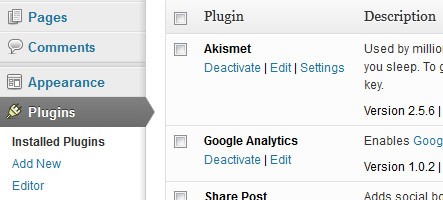
WordPress is a great blog and website platform that is user-friendly. It uses plugins to add more bells and whistles to your website. To add plugins:
- Go into your WordPress dashboard
- On the left-hand side, hover over “Plugins”
- Click “add new” when the drop-down appears
- Search for the kind of plugin you want and install
- Follow the Plugin’s instructions to make active.
My Top Favorites!
- Akismet (requires registration) - reduces spam comments
- All In One SEO Pack - Search Engine Optimization (helps you show up in Google searches.)
- Ultimate Social Media Icons.
- Google Analytics - Google Analytics lets you know who looking at what on your site for how long and where.
- Revive Old Posts - Sends older posts to Twitter to keep Twitter active and blog visible.
After you install the plugins of your choice, make sure to activate them. Each should have its own list of easy to follow instructions. If it’s too complicated, then uninstall it, delete it, and try a different plugin. They should not be complicated.
How do I know if it’s any good?
In a nutshell, some are by trial and error. Others are by reviews, popularity, and activity. For example: if you want a plugin that creates a pop-up box for email sign up, this search will give you thousands of options to choose from. By reading the reviews, seeing when it was last updated, and how popular the plugin is are great markers for a good or bad plugin. If it hasn’t been updated in 6 months or has several bad reviews, then I would move on. If you only want the free version and the bad reviews are against the paid version, then it still could be a valid option.
If you want help adding plugins to your site or want to know more about them, please give me a call 804.402.0084 or email me at [email protected].
*Note: Reviewed and updated 1/2020. Some of my favorites are still original to this post.*



Analytics Blogging CMS Content Management Systems Google Analytics Plugins Social Media Website WordPress












One Response
[…] you are like me and use a WordPress plugin to help auto-post. Take time to change your settings from time to time […]